
Gemini 3.1 Pro for Designers: A Practical Guide
Learn how Google’s latest Model changes the way Designers Prototype, Build, and Ship.
I’ve been prototyping with Google AI Studio for the past six months. And when Gemini 3.1 Pro dropped on February 19th, something clicked into place that I think every designer needs to understand.
This isn’t a “Gemini vs Claude” piece. I use both. Daily. For different reasons, in different moments, at different stages of the design process. The designers who will win in 2026 aren’t the ones who pick a side: they’re the ones who understand when to reach for which tool.
So let me show you what Gemini 3.1 Pro actually does for designers, practically, and why Google AI Studio might be the best free prototyping environment available right now.
Why Gemini 3.1 Pro Matters for Designers
Let me cut through the hype.
Gemini 3.1 Pro is Google’s reasoning upgrade to the Gemini 3 series, released February 19, 2026. It scored 77.1% on ARC-AGI-2, which is more than double the reasoning performance of Gemini 3 Pro from November. For designers, the benchmarks aren’t the point. What matters is what this improved reasoning translates to in practice.
People are building mindblowing experiences with it (even with the combination of Claude for further coding superpowers).
Between Gemini 3.1 and Claude 4.6 it’s honestly wild what you can build. This feels like Google Earth and Palantir had a baby.
Made this with all the geospatial bells and whistles — real time plane & satellite tracking, real traffic cams in Austin, and even got a traffic system… pic.twitter.com/GXpizt0TLn
— Bilawal Sidhu (@bilawalsidhu) February 20, 2026
Three things changed that directly impact how I work:
SVG generation that actually works. Gemini 3.1 Pro generates website-ready, animated SVGs directly from text prompts. Not pixel-based images — pure code. They stay crisp at any scale, weigh almost nothing compared to video files, and can be embedded directly into production sites. Dynamic icons, loading animations, interactive elements, micro-interactions — all from a description in plain English.
Prototype-first development in AI Studio. Google updated AI Studio to be genuinely full-stack. You can now go from idea to working prototype in AI Studio’s “Build” section, and Gemini 3.1 Pro is the engine that makes it feel like designing with a fast, opinionated colleague rather than fighting with a code generator.
A 1 million token context window. You can throw an entire codebase, a PDF spec, screenshots of your current UI, a video walkthrough, and a detailed prompt into a single conversation. It processes text, images, audio, video, PDFs, and code repositories natively. For designers dealing with complex, data-rich projects that traditional tools choke on, this is transformative.
The Google Design Ecosystem (What Goes Where)
Before diving into workflows, let’s map the landscape. Google now has a complete designer-to-developer pipeline, and understanding which tool does what saves you hours of confusion.
Google AI Studio — Your free prototyping sandbox. This is where you talk to Gemini 3.1 Pro, build full-stack apps from prompts, and iterate on interactive prototypes. Think of it as the “workshop” where ideas become working code. You access Gemini 3.1 Pro here for free (with rate limits).
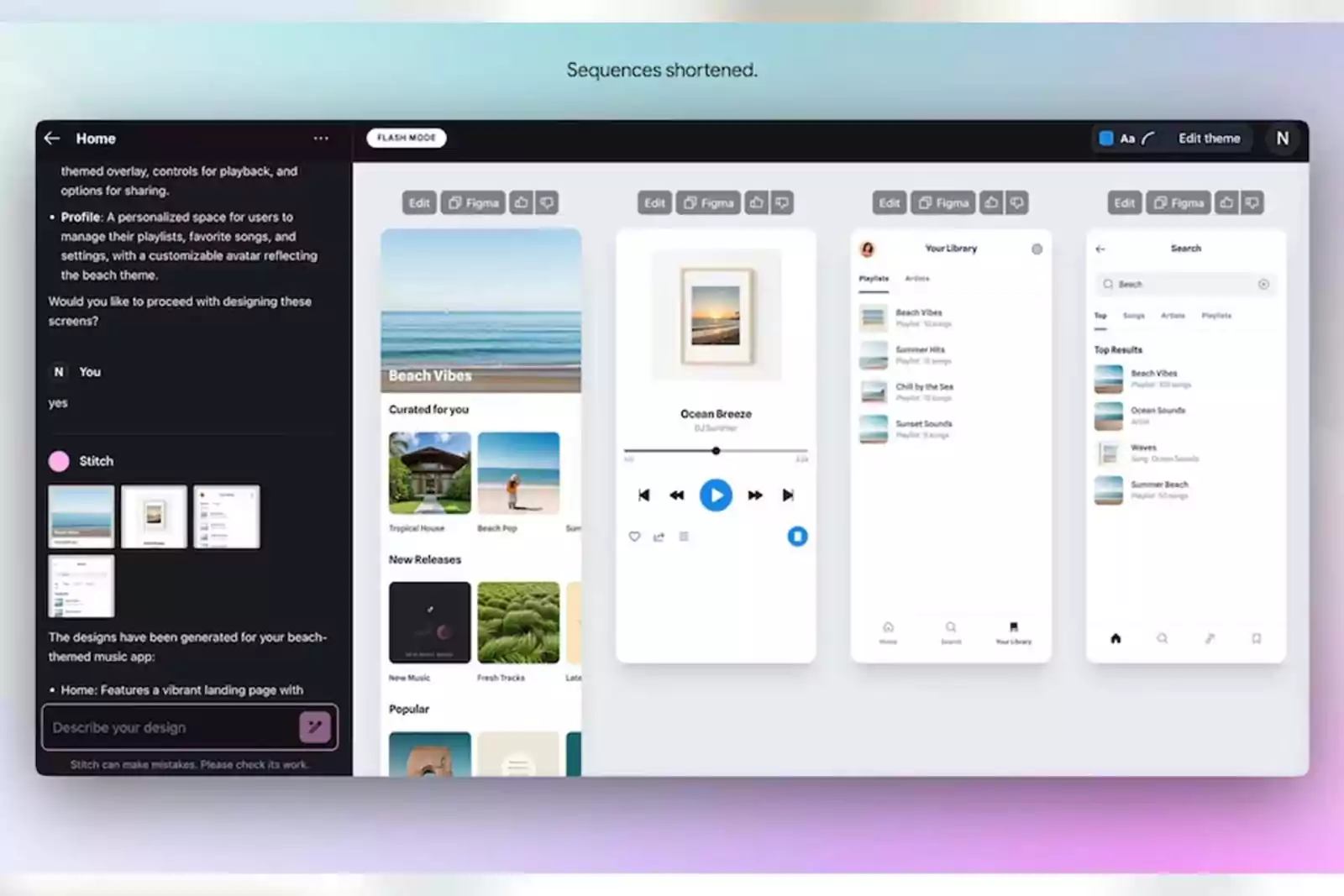
Google Stitch — Prompt-to-UI generation with Figma export. Built on Gemini, Stitch takes text descriptions or uploaded wireframes and generates complete interface designs with production-ready HTML/CSS. One-click paste to Figma preserves layers and components. This is your rapid ideation tool for when you need five layout variations in two minutes, not two hours.
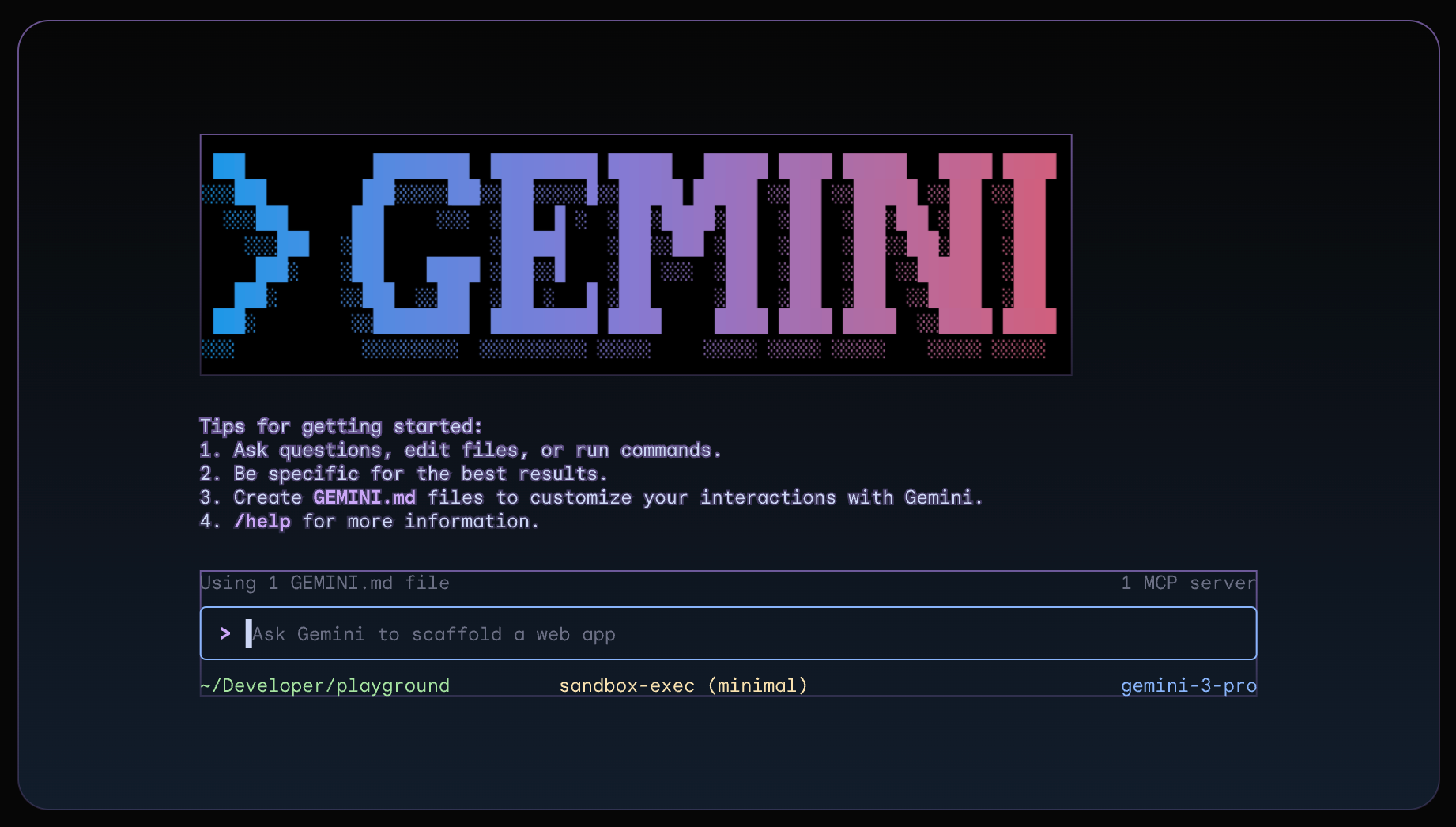
Gemini CLI — Google’s open-source terminal agent. Like Claude Code, but powered by Gemini. Free with 1,000 requests/day. Supports file operations, shell commands, Google Search grounding, and MCP integrations. And — critically for readers of my last article — Get Shit Done works natively with Gemini CLI. Same commands, same workflow, different engine.
Google Antigravity — The agent-first IDE. If Claude Code is a pair-programming partner, Antigravity is a project manager with a team of autonomous agents. It runs multiple agents in parallel — one plans, one codes, one tests, one browses — while you orchestrate from a “Mission Control” view. Free in public preview, supports Gemini 3 Pro, Claude Sonnet 4.5, and GPT-OSS.
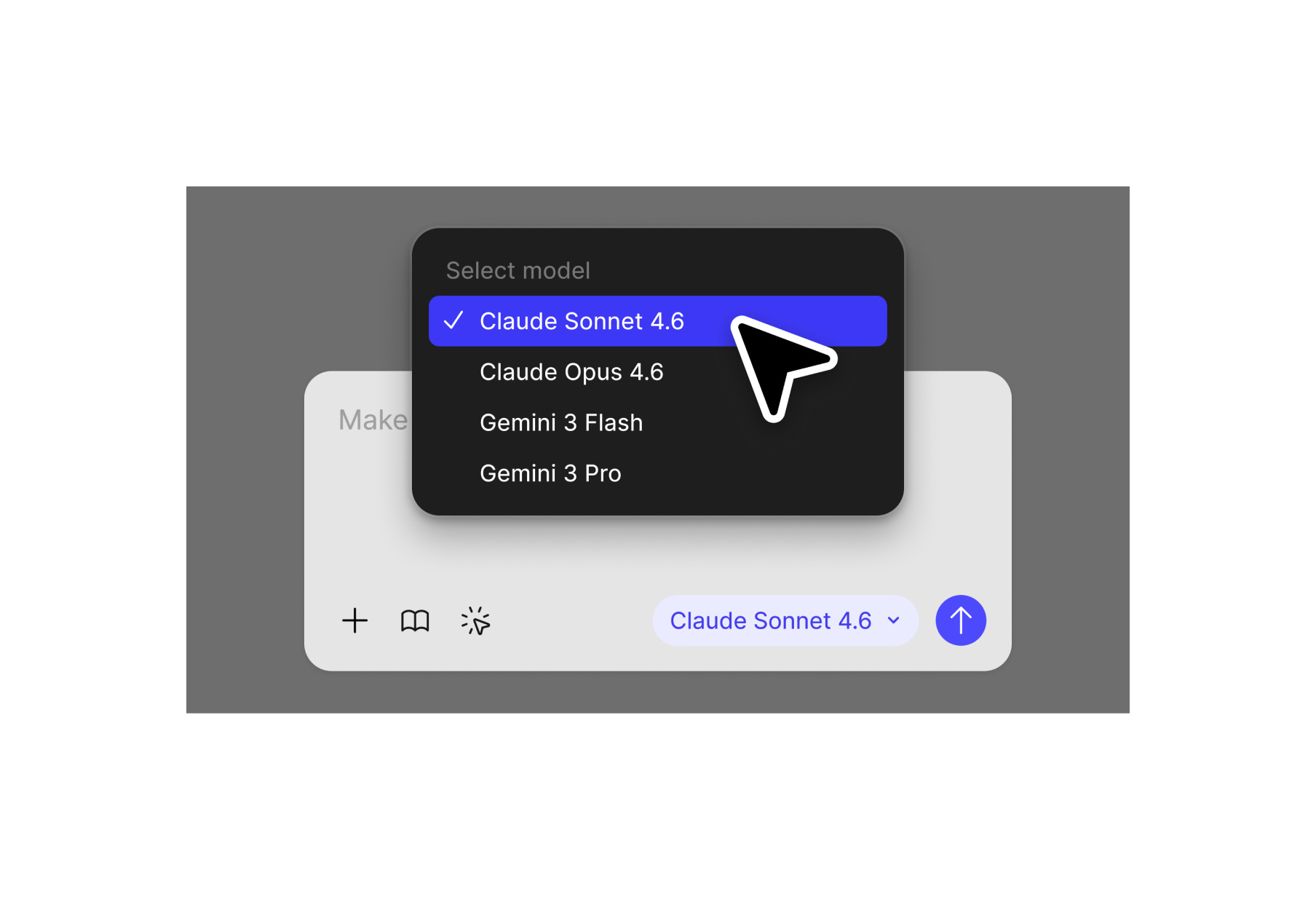
Figma Make — Gemini 3 Pro is now available inside Figma’s Make feature, turning your design tool into a prompt-to-prototype engine without leaving the canvas.
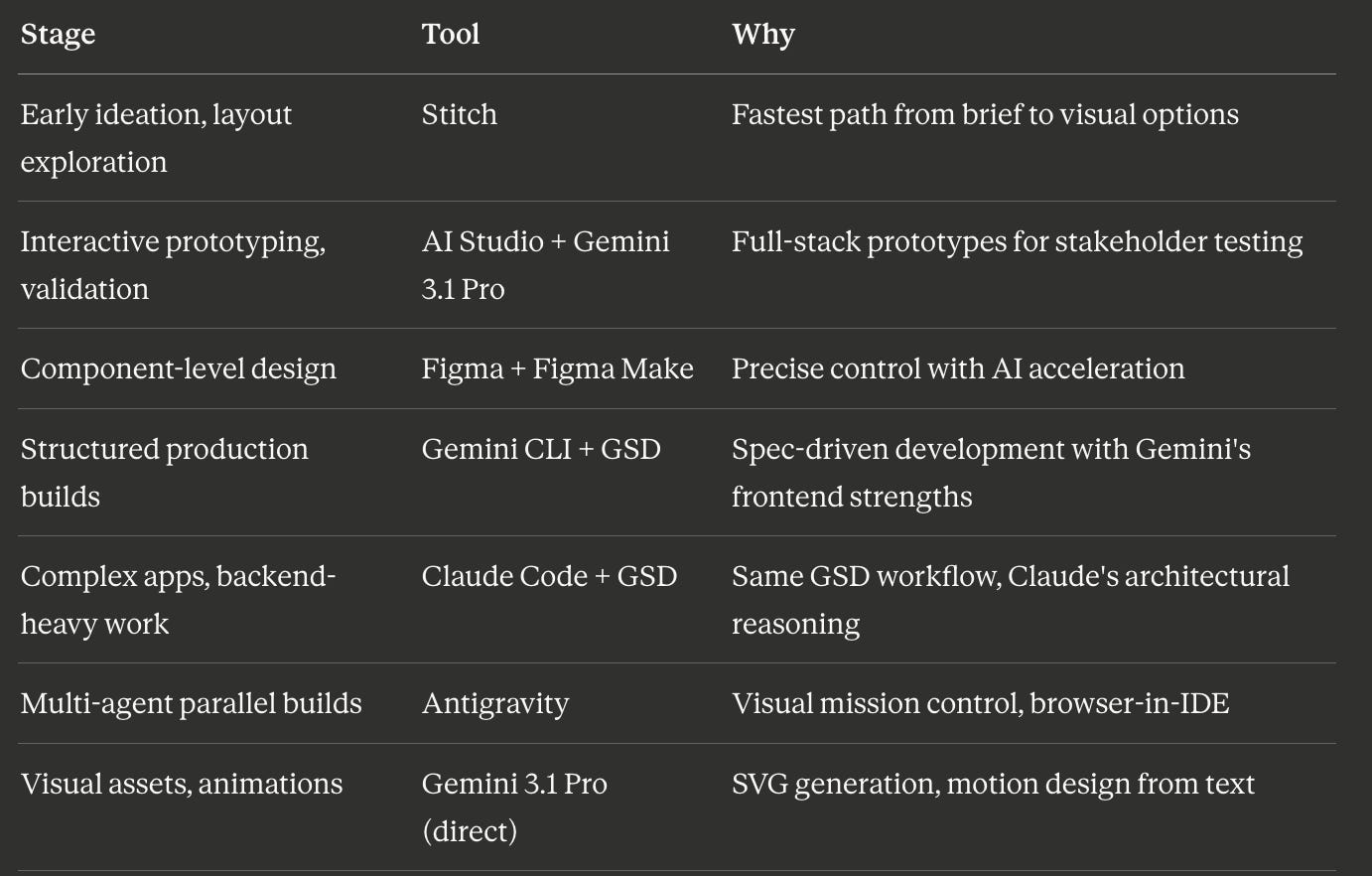
Each tool serves a different stage of the design process. Here’s how I actually use them:
Bonus: Pomelli —An AI marketing tool that helps you easily generate scalable, on-brand content to connect with your audience faster. Just enter your website, and Pomelli will understand your unique business identity to build effective campaigns tailored to your brand.
The SVG Superpower (And Why Designers Should Care)
This is the feature that surprised me the most.
I’ve been making animated micro-interactions for client presentations for years. Usually that means After Effects, Lottie export, fiddling with JSON files, hoping the animation renders correctly in-browser. It’s an afternoon’s work for a loading spinner.
With Gemini 3.1 Pro, I described what I wanted:
“Create an animated SVG of a minimalist loading indicator with three dots that bounce sequentially. Use a blue-to-purple gradient. The animation should loop smoothly and feel premium, not generic.”
I got clean SVG code with CSS animations. It rendered correctly in the browser on the first try. File size was a few kilobytes. And because it’s vector-based code, not pixels, it scales infinitely without quality loss.
This sounds like a small thing. It’s not.
For graphic designers, this means creating animated icons, illustrated visual elements, and motion graphics from text prompts: without touching After Effects or writing animation code manually. For web designers, it means dynamic, lightweight, production-ready visual assets embedded directly in your projects. For product designers, it means rapid visual prototyping of micro-interactions that you can show in stakeholder meetings, not as static mockups, but as real, working animations.
The level of detail in complex SVGs has improved dramatically from Gemini 3 Pro. The classic “pelican riding a bicycle” test — a benchmark the Gemini team openly tracks — now produces anatomically reasonable results with correct bicycle mechanics, proper posture, and narrative detail. This is the kind of spatial reasoning and visual intelligence that matters when you’re asking an AI to create interface elements that need to look right, not just exist.
Practical SVG use cases for designers:
- Animated hero illustrations for landing pages
- Custom loading states that match your brand
- Interactive data visualizations (charts that animate on scroll)
- Icon systems with hover animations
- Explainer diagrams with sequential reveals
- Sensory-rich experiences with hand-tracking and generative audio
That last one isn’t hypothetical. Google demoed a 3D starling murmuration where users manipulate the flock with hand-tracking while a generative score shifts based on the birds’ movement. It’s built entirely in code output from Gemini 3.1 Pro. For designers exploring spatial interfaces or immersive experiences, this is a preview of what’s coming.
How to set thinking level for better SVGs
A key detail most tutorials skip: Gemini 3.1 Pro has a “thinking level” setting in AI Studio. Set it to High when you need precision in spatial layouts, animation timing, and color accuracy. The model spends more time reasoning through the visual logic before generating code.
The trade-off is latency. High thinking mode can take significantly longer — sometimes minutes for complex SVGs. But the output is substantially better, often producing browser-compatible code that needs no cleanup.
For quick iterations, use the default thinking level. For final assets, crank it up.
The Prototype-First Workflow
This is where Gemini 3.1 Pro changes the way I think about design.
The traditional workflow: spec → design → handoff → engineering → feedback → iterate. By the time you get real user feedback, you’ve invested weeks.
The prototype-first workflow: prototype → validate with real users → then create the spec and design for what actually works.
Google AI Studio makes this practical because it’s free, fast, and full-stack. Here’s my five-step process, adapted from how I use it for Accenture Song client work:
Step 1: Replicate What Exists
Start by taking screenshots of whatever you’re redesigning — the current interface, the moodboard, the whiteboard sketch from last week’s workshop. Upload them to AI Studio’s “Build” section with Gemini 3.1 Pro selected.
Prompt:
“Replicate these screens as closely as possible. Match the styles, colors, and layout. Make it interactive — clickable navigation, working buttons, functional form fields.”
Gemini 3.1 Pro builds a working replica. This becomes your base template. You can always start over from here if an iteration goes wrong.
Step 2: Create a Custom Gem (Your AI Design Partner)
This is the Google equivalent of Claude’s system prompts, and it’s incredibly powerful for designers.
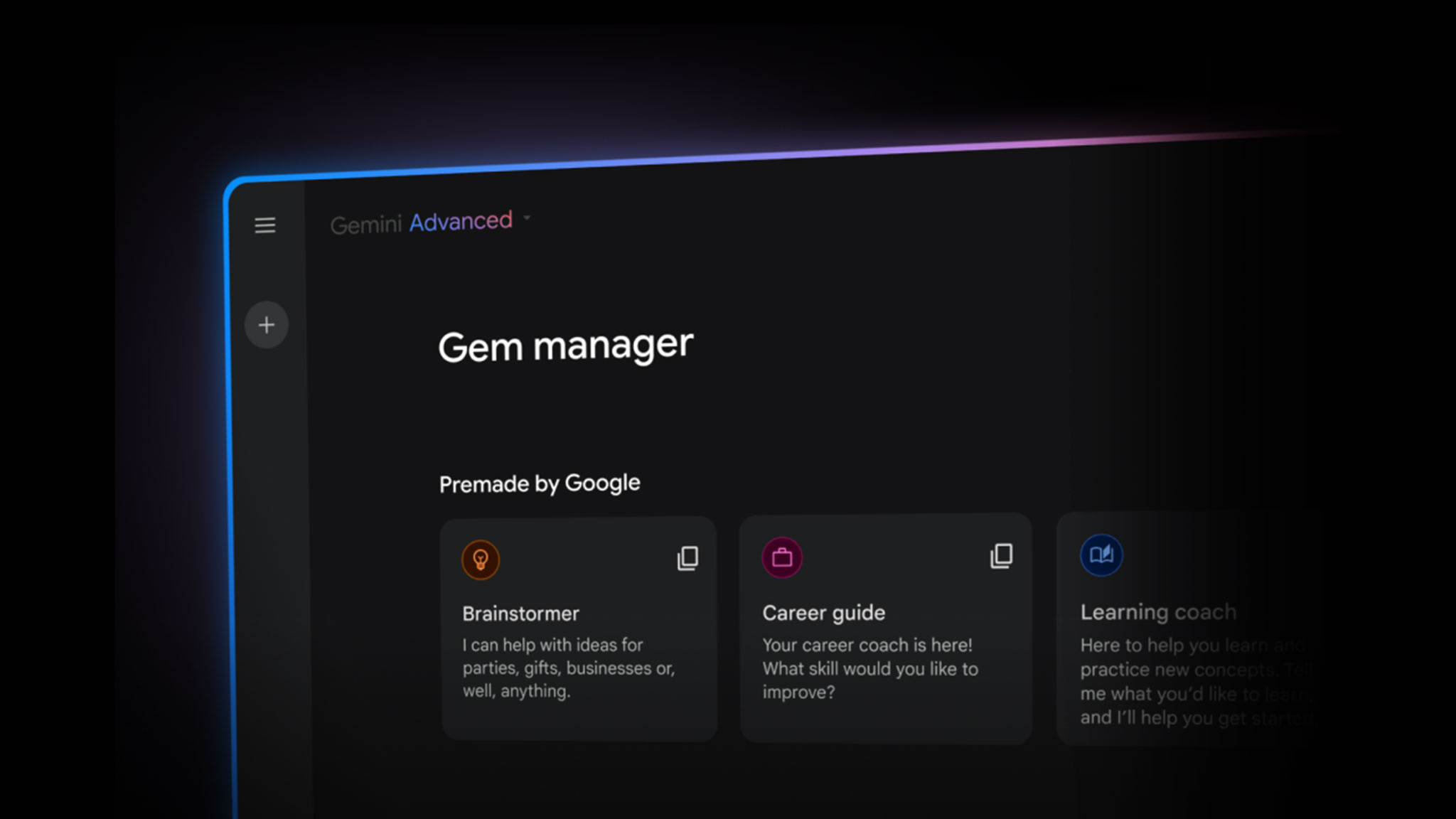
Go to Gemini and create a “Gem”: essentially a persona with persistent instructions. I set mine up like this:
“Give me a prompt to make you an experienced UX designer. I want you to work with me to simplify the UX for [project name].”
Paste the generated prompt into the Gem. Upload screenshots of your current interface. Now you have a persistent AI collaborator who understands your specific project context, design constraints, and goals.
When you ask your Gem “What are the top 5 things to simplify?”, it doesn’t give you generic UX advice. It analyzes your actual screenshots and gives you specific, actionable recommendations based on your project.
Step 3: Iterate via AI Feedback Loops
Here’s where Gemini’s multimodal capabilities shine. Instead of describing what’s wrong in text, you (and “it”) can:
- Take a screenshot of the broken layout and annotate it with circles and arrows
- Upload a photo of a whiteboard sketch as a “this is what I actually want” reference
- Share a similar experience interface and say “make it feel more like this, but keep our layout” (hey, don’t forget to use AI in an ethical manner…always)
- Record a short video walkthrough and describe what needs to change
Gemini 3.1 Pro treats your visual annotations as high-priority instructions. It sees the red circle you drew around the broken navigation and fixes that specific element, not the whole page.
Step 4: Collaborate Through Shared Links
AI Studio generates shareable links for your prototypes. Send them to stakeholders, PM, engineering — anyone who needs to see the work. They interact with a live, working prototype, not a static Figma file.
The feedback you get back is qualitatively different. Instead of “I think this might work,” you hear “I clicked through the whole flow and the checkout step is confusing.” Real interaction, real feedback, real data.
Step 5: Transition to Production
Once you’ve validated the prototype, you have two paths:
For simple features: Go straight from prototype to production. The code Gemini generates is often clean enough for production with minor refinements.
For complex products: Create the PRD and detailed design now but informed by real user feedback on a working prototype. This is where you hand off to Figma for pixel-perfect work, to Claude Code for structured production builds, or to Antigravity for agentic development. Pick your poison!
The key insight: the spec comes after validation, not before. The prototype isn’t a deliverable: it’s a learning tool.
Multi-Model Thinking: When to Use What
Here’s what I’ve learned from six months of using AI models in parallel for design work:
Gemini 3.1 Pro excels at:
- Visual asset generation (SVGs, animations, interactive graphics)
- Frontend/UI code quality — many users on X specifically praise its superiority in UI/UX output
- Multimodal input processing (throw images, video, PDFs, code at it simultaneously)
- Rapid prototyping in AI Studio’s integrated environment
- Creative coding: the kind of sensory-rich, experimental interfaces that push boundaries
- Mathematical precision in layouts, spatial relationships, and animation timing
Claude (Opus/Sonnet) excels at:
- Backend logic, system architecture, and complex reasoning about code structure
- Long-form planning and spec-driven development (especially with GSD)
- Deep context maintenance across complex projects
- Production-ready code with proper error handling and edge cases
- Writing and documentation quality
The multi-model workflow I actually use:
For a client dashboard project, I’ll start in Figma Make or AI Studio with Gemini 3.1 Pro to rapidly prototype the interface, layout, visual components, interactive charts, animated data visualizations. The prototype gets validated with stakeholders in hours, not weeks.
Then I switch to the production build. And here’s the key insight: GSD works identically across Gemini CLI or (my weapon of choise) Claude Code. The same /gsd:new-project → /gsd:discuss-phase → /gsd:plan-phase → /gsd:execute-phase loop. The same spec files, the same context engineering, the same atomic commits. I choose the runtime based on the task, not the methodology.
For frontend-heavy builds where Gemini’s visual precision matters, I run GSD on Gemini CLI. For backend-heavy builds where Claude’s architectural reasoning shines, I run GSD on Claude Code. Same workflow, different engine, best of both worlds.
For visual assets throughout the project (icons, loading animations, illustrated empty states, data visualizations), I go back to Gemini 3.1 Pro directly. It’s faster and more visually precise for these specific tasks.
Some users on X recommend an even more granular split: Gemini for UI, Claude Opus for planning and logic, GPT-Codex for specific backend tasks. I think that’s overkill for most designers. Two models: Gemini for frontend/visual, Claude for backend/structure, covers 90% of use cases.
Stitch: Your Zero-to-UI Fast Lane
I want to spend a moment on Stitch because it’s the most underrated tool in Google’s design ecosystem.
Stitch is a free Google Labs experiment at stitch.withgoogle.com. It takes text prompts or uploaded images (wireframes, whiteboard sketches, screenshots) and generates complete UI designs with exportable code.
Two modes:
- Standard Mode (Gemini Flash): Fast generation, 350 designs/month, text prompts only, supports Figma export
- Experimental Mode (Gemini Pro): Higher fidelity, 50 generations/month, accepts image inputs, no Figma export (yet)
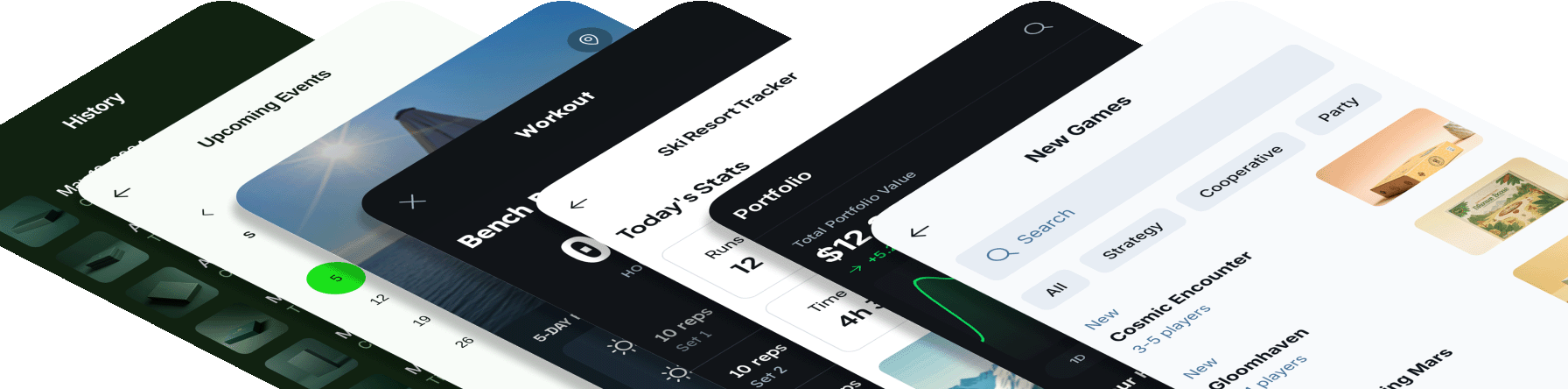
Why designers should care:
The one-click Figma export preserves layers and Auto Layout. You generate a concept in Stitch, paste it into Figma, and immediately start refining with your design system tokens, brand colors, and component library. The AI did the layout thinking; you do the craft.
My workflow with Stitch:
For early client workshops focusing on App design, I use Stitch to generate five layout variations of a proposed screen in under ten minutes. These aren’t wireframes. they’re high-fidelity mockups with real color palettes, typography, and component structure. I present them in the meeting, get immediate feedback, and iterate live.
This replaces two to three days of “concept exploration” in Figma. The design quality isn’t pixel-perfect, but it’s good enough for directional decisions. And that’s the point, speed of learning, not perfection of output.
Limitations to know:
Stitch is experimental. Results can be inconsistent. Brand alignment requires manual refinement. Complex interaction flows aren’t supported yet. And there’s a frustrating split: Experimental Mode (better quality, image uploads) doesn’t support Figma export, while Standard Mode (Figma export) doesn’t accept images. Google will probably fix this, but for now, pick the mode that matches your immediate need.
Gemini CLI + Get Shit Done: The Full Workflow
If you read my Claude Code article, you know I’m a GSD evangelist. Get Shit Done is the meta-prompting system that makes AI coding agents reliable — it solves context rot, enforces spec-driven development, and makes your AI think like a product designer before writing a single line of code.
Here’s what I didn’t know when I wrote that article: GSD now natively supports Gemini CLI.
Same installer. Same workflow. Same commands. Different engine.
What is Gemini CLI?
Gemini CLI is Google’s open-source command-line AI agent. Think of it as Google’s answer to Claude Code — it brings Gemini directly into your terminal with built-in tools for file operations, shell commands, Google Search grounding, web fetching, and MCP server integration.
The key numbers: 60 model requests per minute, 1,000 requests per day, completely free with a personal Google account. That’s the most generous free tier in the industry. No API key needed for basic usage — just sign in with Google.
For designers who want to build with Gemini’s strengths (frontend precision, SVG generation, visual fidelity) but need the structured workflow that prevents vibe coding chaos, this is the combination.
Install Gemini CLI
bash
npm install -g @google/gemini-cliIf you don’t have npm, install Node.js first from nodejs.org.
Verify it works:
bash
geminiYou’ll be prompted to sign in with Google. Done.
Install Get Shit Done for Gemini CLI
bash
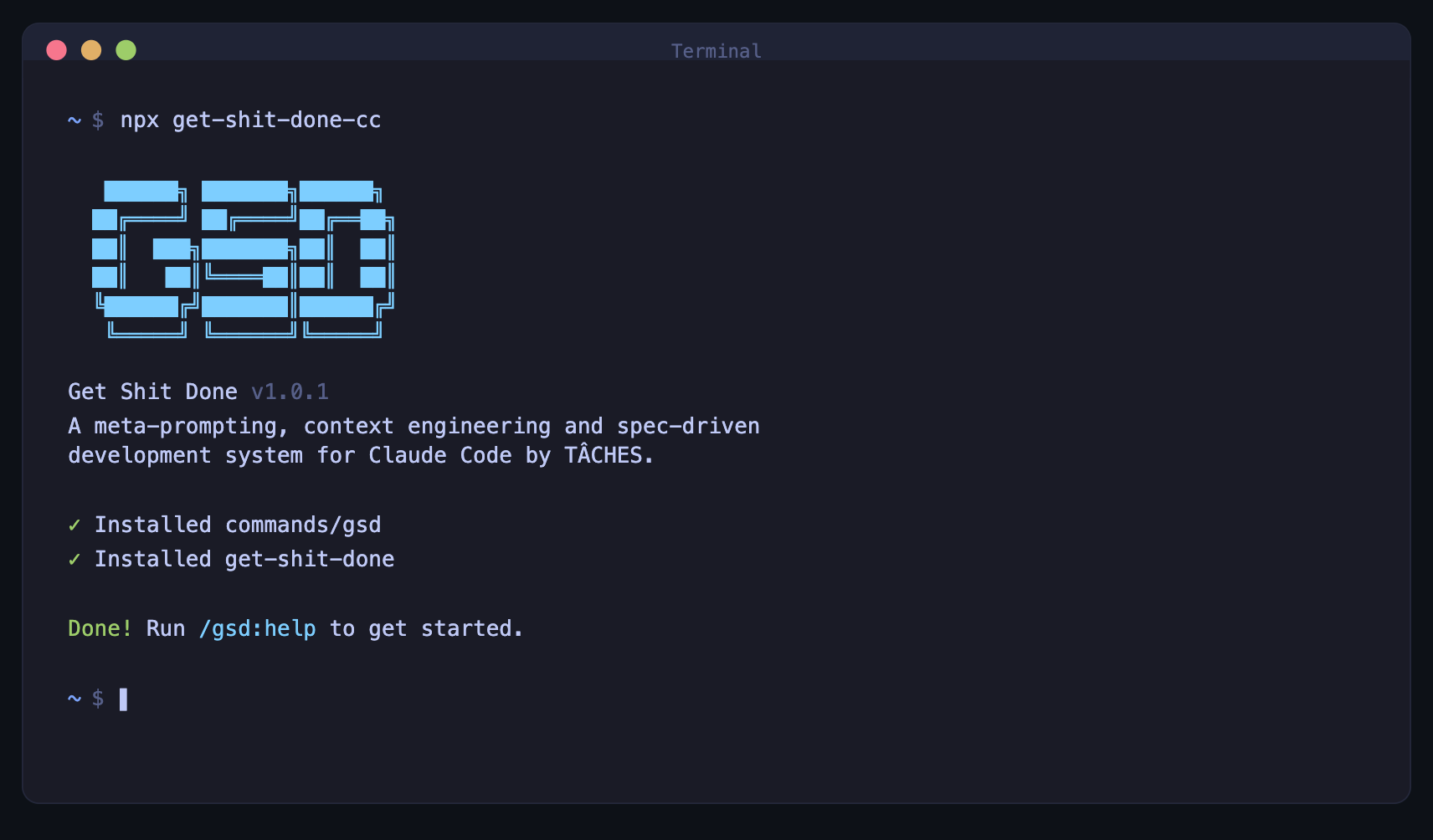
npx get-shit-done-cc@latestThe installer asks you to choose a runtime. Select Gemini. Choose Global so it works across all projects.
Verify inside Gemini CLI:
/gsd:helpYou should see the full command list.
That’s it. You now have spec-driven development powered by Gemini’s reasoning engine.
The GSD Workflow (Quick Recap for New Readers)
If you haven’t read my Claude Code article, here’s the essential loop:
1. /gsd:new-project       → Questions → Research → Requirements → Roadmap
2. /gsd:discuss-phase N   → Capture YOUR design decisions before planning
3. /gsd:plan-phase N      → Research → Create plans → Verify plans
4. /gsd:execute-phase N   → Parallel execution → Atomic commits → Auto-verification
5. /gsd:verify-work N     → Manual testing → Auto-diagnose issues → Fix plans
6. Repeat 2-5 for each phase
The magic is in step 2. Without GSD, you say “build me a dashboard” and Gemini immediately generates code with reasonable defaults that aren’t your defaults. With GSD, it asks you:
- “What’s the grid density? Compact, spacious, or generous?”
- “Hover behavior on cards — lift, shadow, scale, or none?”
- “What happens when there’s no data?”
- “How should this behave on mobile?”
This is the designer mindset. GSD captures your vision in a CONTEXT.md file, and every subsequent step — research, planning, execution — is informed by your actual preferences, not generic AI assumptions.
Why GSD + Gemini CLI Specifically
The combination plays to Gemini’s strengths while compensating for its weaknesses:
Gemini’s strength: visual output quality. Many users on X specifically praise Gemini’s UI/UX code superiority. The frontend components it generates tend to be more visually refined out of the box. GSD’s discuss-phase captures your exact visual preferences, and Gemini executes them with precision.
Gemini’s strength: multimodal input. Gemini CLI supports Google Search grounding and web fetching natively. During GSD’s research phase, agents can pull real-world examples, analyze competitor interfaces, and reference current best practices — grounded in live web data, not just training knowledge.
GSD compensates for: context management. Like any AI coding agent, Gemini CLI’s output degrades as conversations get longer. GSD solves this with fresh 200k-token contexts per executor agent. Each task gets the full context window without accumulated garbage from previous steps.
GSD compensates for: consistency. Gemini 3.1 Pro can be inconsistent across sessions — the same prompt yielding different results. GSD’s spec-driven approach locks decisions in documented files (REQUIREMENTS.md, CONTEXT.md, PLAN.md) that persist across sessions. The AI doesn’t need to remember your preferences; they’re written down and loaded every time.
Quick Mode for Designers
For fast tasks that don’t need the full ceremony:
/gsd:quick
> "Generate an animated SVG loading spinner with three bouncing dots, teal on dark background, premium feel"
GSD still gives you atomic commits and state tracking, just skips the research and verification steps. Perfect for visual asset generation, small component tweaks, or one-off prototypes.
Antigravity: The Agent-First IDE
Antigravity is Google’s visual IDE for agentic development — a VS Code fork rebuilt around multi-agent workflows. Where Gemini CLI is terminal-first, Antigravity gives you a graphical “Mission Control” to orchestrate autonomous agents.
The key difference from Claude Code or Gemini CLI: Antigravity runs multiple agents in parallel, each with its own surface — one edits code, one runs terminal commands, one browses with a built-in Chromium browser. You review their “artifacts” (screenshots, walkthroughs, diffs) and approve or redirect.
For designers, the built-in browser is the killer feature. You describe a UI change, an agent modifies the code, another agent launches the app inside Antigravity, takes a screenshot, and shows you the result. No terminal context-switching. No “let me check localhost.”
When I reach for Antigravity:
- Rapid UI iteration in client meetings (live preview without alt-tabbing)
- Multi-file design system changes (update 15 components simultaneously)
- Visual regression checks (agents screenshot before/after)
- Model comparison (supports Gemini 3 Pro, Claude Sonnet 4.5, and GPT-OSS)
When I use Gemini CLI + GSD instead:
- Structured, multi-phase production builds
- Projects where I need documented decisions and traceable specs
- Long-running work where context management matters most
- When I want the discipline of spec-driven development
Antigravity is free in public preview at antigravity.google/download. Try it alongside GSD — they serve different moments in the design process.
Gemini 3.1 Pro × Designer Type: A Practical Reference
Different designers will use different features. Here’s how I’d map it:
Graphic Designers → SVG generation and visual asset creation. Use AI Studio with high thinking mode. Upload reference images for style matching. Generate animated icons, illustrated graphics, and motion elements from text prompts.
UI/UX Designers → Interface redesign and feature iteration. Create a custom Gem with your project context. Upload screenshots of current interfaces. Use Stitch for rapid layout exploration, then AI Studio for interactive prototyping.
Web Designers → Creative coding and interactive sites. Gemini 3.1 Pro generates full React applications, 3D simulations, interactive dashboards, and data visualizations. Use the Gemini API for code output in production projects, or Antigravity for agent-managed builds.
Product Designers → Prototype-first validation. The combination of AI Studio prototyping + Stitch wireframing + Figma Make component design gives you a complete loop from concept to validated prototype without writing a single line of code yourself.
Limitations (The Honest Part)
I’m not going to pretend this is perfect. Here’s what you need to know:
Occasional syntax errors. Gemini 3.1 Pro sometimes generates code that needs a reprompt to fix. It’s less frequent than Gemini 3 Pro, but it happens. Always test output before shipping.
Latency in high-thinking mode. When you set thinking to High for complex SVGs or applications, generation can take minutes. For simple tasks, this is overkill. Match the thinking level to the complexity.
Inconsistency across sessions. The same prompt can produce meaningfully different results on different days. This is true of all AI models, but worth noting when you’re trying to maintain brand consistency across assets.
Not infallible for all benchmarks. Some users on X note that Claude Opus 4.6 still has an edge in cohesive designs or speed for certain tasks. This matches my experience — Gemini wins on visual fidelity and frontend precision, Claude wins on structural reasoning and production reliability. Use both.
Pricing scales for enterprise. AI Studio is free with rate limits for experimentation. Google AI Pro ($19.99/month) and Ultra ($249.99/month) give you higher limits. For production API access, costs depend on volume. Free is enough for prototyping; plan your budget for production use.
Stitch is still experimental. Treat it as a rapid concept tool, not a production design system. Export to Figma for anything that needs polish.
Getting Started
You don’t need to install anything for the first three steps. Just to get your surroundings.
1. Go to AI Studio: aistudio.google.com. Sign in with Google. Select Gemini 3.1 Pro from the model dropdown.
2. Try to create a landing page: Type “Create an animated landing page based on my linkedin profile https://www.linkedin.com/in/your-profile/. Use a dark background with a teal accent color. Make it feel premium, award worthy.” Copy the output, paste it in your browser. You’ll have a working animation in under a minute.
3. Build a prototype: Go to the “Build” section. Upload a screenshot of any interface you’re working on. Say “Replicate this screen and make it interactive.” Iterate from there.
4. Try Stitch: Go to stitch.withgoogle.com. Describe an app screen: “A clean dashboard for a fitness tracking app with weekly activity charts, daily step count, and a nutrition summary. Use a dark theme with green accents.” Generate designs. Paste to Figma.
5. Set up Gemini CLI + GSD (the serious workflow):
bash
# Install Gemini CLI
npm install -g @google/gemini-cli

# Install GSD
npx get-shit-done-cc@latest
# Select: Gemini → Global

# Start a project
gemini
/gsd:new-project
This is the path from “playing with AI” to “shipping production work.” Steps 1-4 get you oriented. Step 5 gives you the structured workflow that makes it reliable.
6. Explore Antigravity: Download from antigravity.google/download. It’s free. Open the Agent Manager. Describe a UI task and watch autonomous agents build it while you review screenshots.
What This Means for the Industry
I said this in my Claude Code article and I’ll say it again: the shift from “designing interfaces” to “designing systems that work” is already happening.
But Gemini 3.1 Pro adds a nuance I didn’t fully appreciate before. It’s not just about code anymore. It’s about the entire visual language of digital products becoming programmable.
When a graphic designer can generate production-ready animated SVGs from a text description, the boundary between “design asset” and “code component” disappears. When a product designer can validate a prototype with real users before writing a single spec, the boundary between “discovery” and “delivery” collapses. When a UX designer can upload screenshots and get AI-driven redesign suggestions grounded in the actual interface, the boundary between “research” and “execution” blurs.
Google’s bet with Gemini 3.1 Pro isn’t just about a better model. It’s about an ecosystem — AI Studio, Stitch, Antigravity, Figma Make, Gemini CLI — where every stage of the design process has AI acceleration built in, often for free.
That doesn’t replace human expertise. The city planning application a Google UX engineer built with Gemini 3.1 Pro didn’t design itself. He brought the product thinking, the data architecture, the user empathy. The model brought the execution speed.
The designers who will thrive are the ones who use these tools to think bigger, move faster, and ship more — while keeping the human judgment that makes design worth doing.
Jakob Nielsen predicts AI-created UI design will surpass human-created UI design for simple problems by late 2026. I think he’s probably right. But that’s not the threat. The threat is being the designer who doesn’t know how to use these tools at all.
Start with SVGs. Build a prototype. Ship something.
The tools are free. The barrier is curiosity.
Resources:
- Google AI Studio — Free prototyping with Gemini 3.1 Pro
- Gemini CLI — Open-source AI agent in your terminal (free, 1,000 requests/day)
- Get Shit Done (GSD) — Meta-prompting system for Claude Code, Gemini CLI, and OpenCode
- Google Stitch — Prompt-to-UI design with Figma export
- Google Antigravity — Agent-first IDE, free in preview
- Gemini 3.1 Pro Announcement — Official Google blog post
- Figma Make + Gemini 3 Pro — AI-powered design inside Figma
Key GSD Commands (work identically on Gemini CLI and Claude Code):
bash
npx get-shit-done-cc@latest       # Install (select Gemini, Claude, or all)
/gsd:help                          # Show all commands
/gsd:new-project                   # Initialize with designer thinking
/gsd:discuss-phase N               # Capture design decisions
/gsd:plan-phase N                  # Research + plan + verify
/gsd:execute-phase N               # Parallel execution
/gsd:verify-work N                 # Manual UAT + auto-diagnosis
/gsd:quick                         # Ad-hoc tasks with GSD quality
If you found this useful, share it with a designer who’s still waiting for permission to prototype. The tools are already here. And if you’re already using Claude Code + GSD, you now have a second engine to reach for.